
Table of Contents
How to View Messages #
The app provides a seamless way to receive and manage important messages and notifications. Whether viewing message snapshots on the dashboard or accessing the full messages section, this guide explains the process step-by-step.
Viewing Messages on the Dashboard #
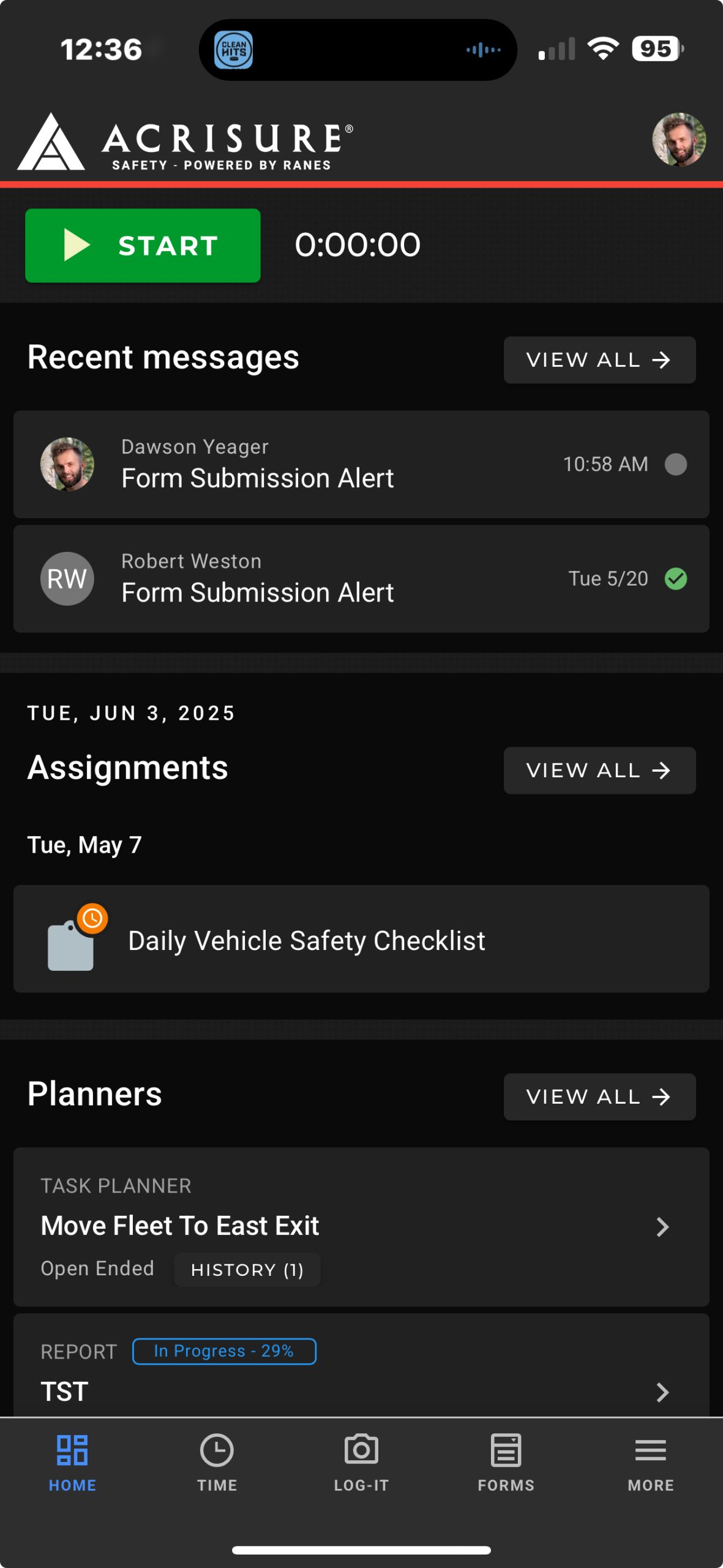
Upon logging in, you will land on the Home Page, where recent messages are displayed as a snapshot:
- Scroll to the Recent Messages section on the dashboard.
- Click on a message to open its full content, or click View All to access the messages section.
Accessing Messages via the Navigation Bar #
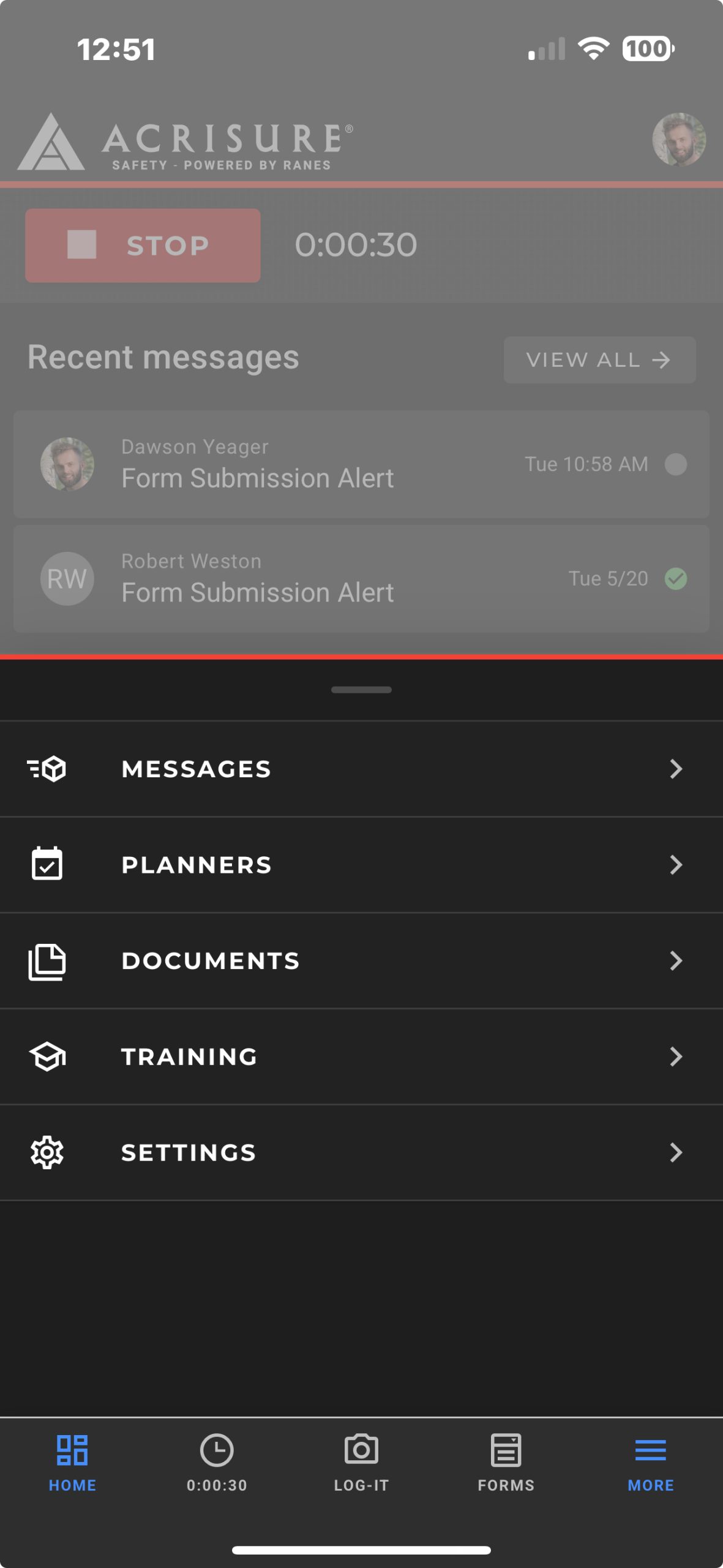
Messages can also be accessed through the bottom navigation bar:
- Click More in the bottom-right of the navigation bar.
- In the dropdown menu, select Messages.
- You will be directed to the Messages section, where all messages are displayed.
Push Notifications for Messages #
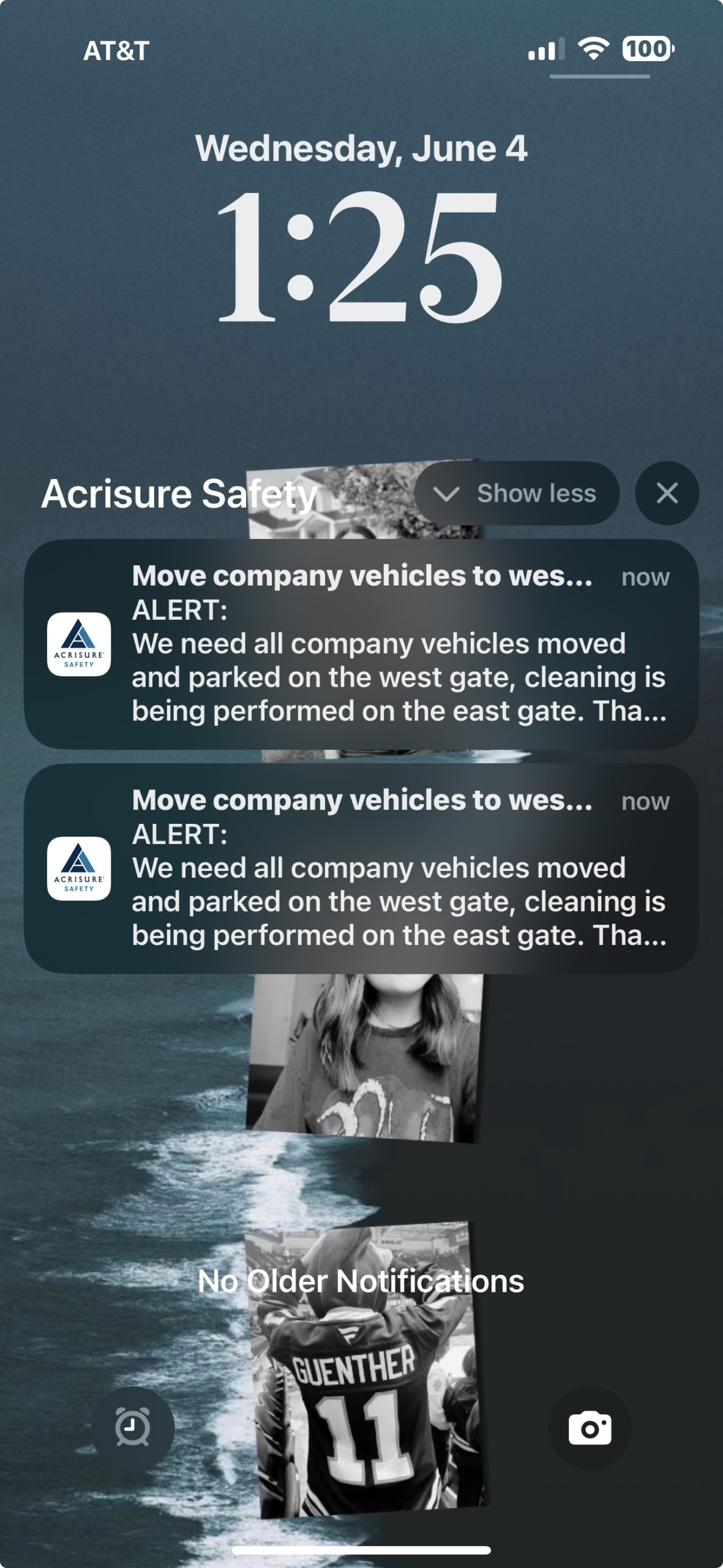
With push notifications enabled, you can stay informed about critical alerts and broadcasts, even when you’re not actively using the app:
- When a new message or broadcast is sent, you’ll receive a notification directly on your device.
- Click on the notification to be redirected to the app and view the message.
Additional Tips #
- Always Stay Updated: Regularly check the Messages section for company communications and updates.
- Enable Push Notifications: Ensure push notifications are enabled on your device to promptly receive alerts.
- Message Retention: Important messages will remain accessible within the Messages section unless deleted or removed by the sender.
Pro Tip: Use the View All option on the dashboard to quickly navigate to the full Messages section for a complete message history.


